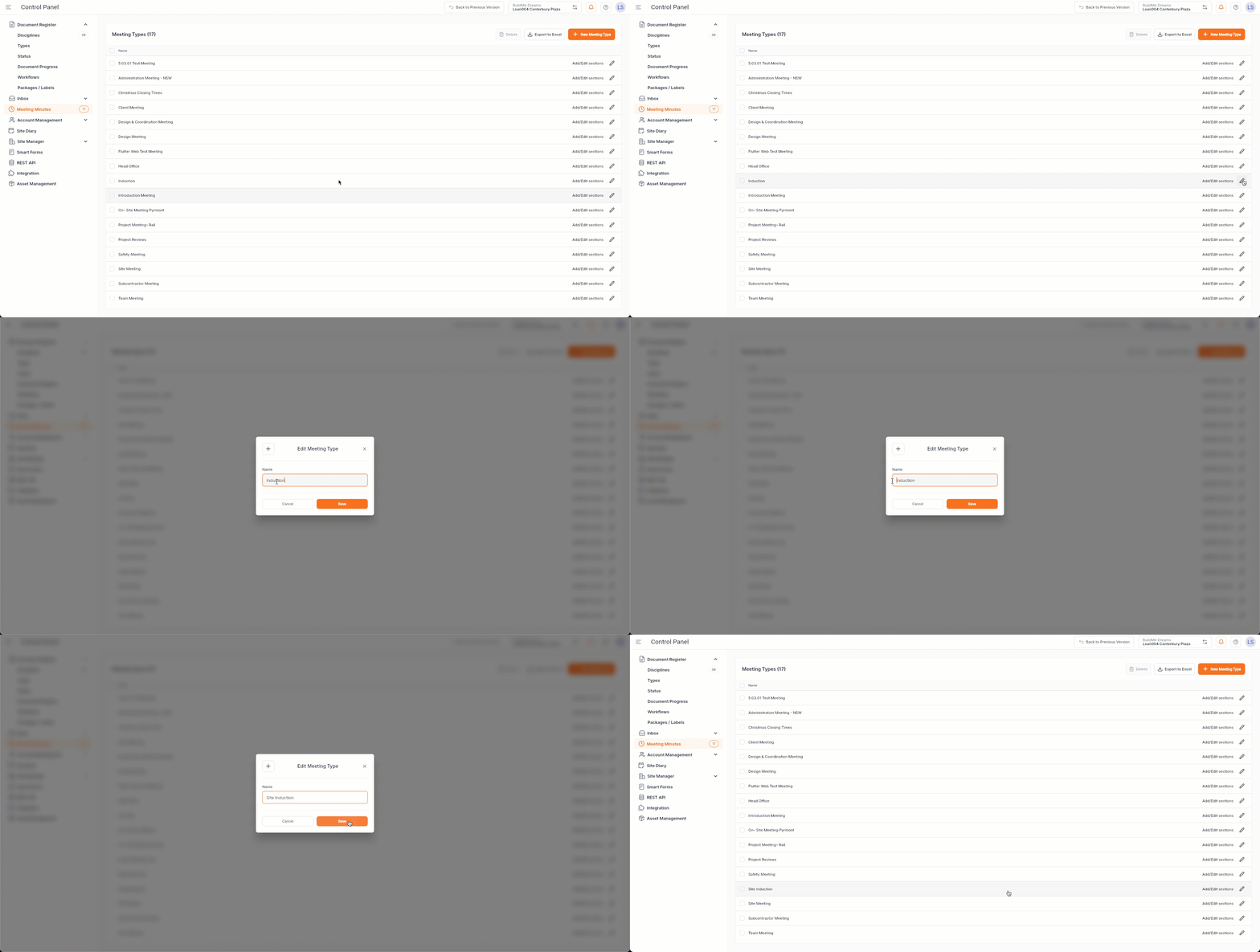
Meeting Minutes - Create Custom Types and Sections
Purpose
Meeting agendas can be set to stay on track during meetings and organise the meeting minutes accordingly. It ensures that the minutes accurately reflect the discussions, decisions, and tasks assigned during the meeting. This documentation serves as a valuable reference for future actions and accountability.
Consideration
- Only Administrators can create and edit Templates in Control Panel
Steps
1. Navigating to Meeting Templates
Click on Meeting Minutes to view your Meeting Types.
2. Create New Meeting Type
- To create a New Meeting Type, click New Meeting Type.
- Add the Title of your Meeting Type and Save.
- You can add sections by simply filling in the blank template and adding sections.
3. Edit Meeting Sections
To edit/add a section to a Meeting Type click on View Section.
- You are able to add numbers to order the sections/headings. Click Save once you are happy with the changes and the sections will be displayed in their correct order.
- To overwrite/edit existing text simply click in the description box.
- To delete a section from the meeting, click on the bin icon.
- To add a section, click on Add Section and a blank row will appear for you to fill in details.
- Once you are happy with the changes, click Save.
4. Edit /Delete Meeting Templates
To delete, click on the appropriate checkbox and click the Delete icon.
To edit the title/description of the selected Meeting Type, click Edit.