How to Customise Your Menu in the Commnia Mobile App | App
Tailor Commnia to your workflow. You can customise your menu, home screen, floating + button, and bottom navigation bar to get the most out of the app.
Interactive Demo

For the best experience click on the demo and enable Fullscreen mode
Steps
Upon first login you will be prompted to customise your menus.
Click on "Yes'that's me" to continue
Click on "Yes'that's me" to continue
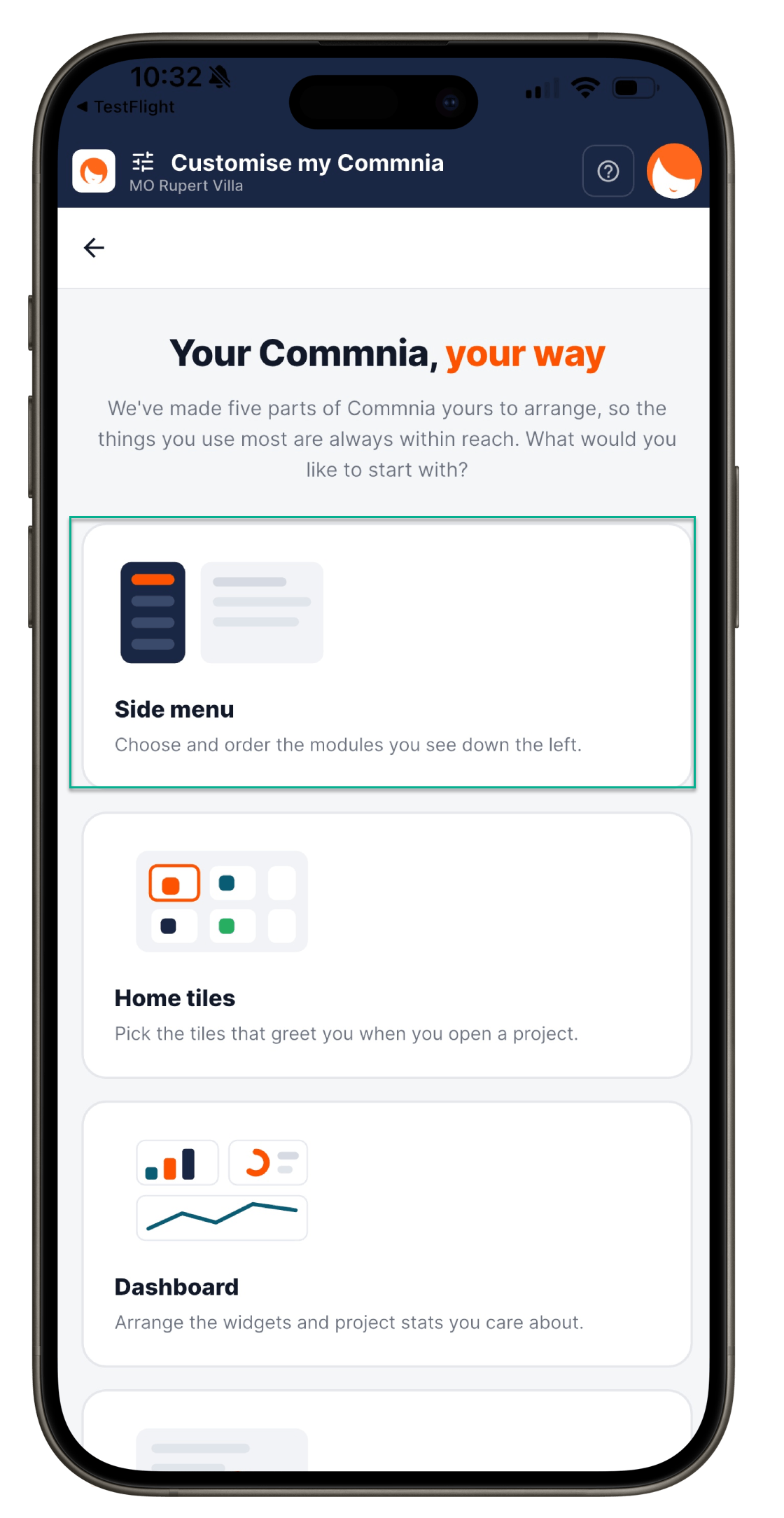
Here you can customise the following:
1. Side Menu
1. Side Menu
2. Home Tiles
3. Dasboard (Coming Soon)
3. Dasboard (Coming Soon)
4. Floating + Button
5. Bottom Navigation.
Side Menu
Select Side Menu
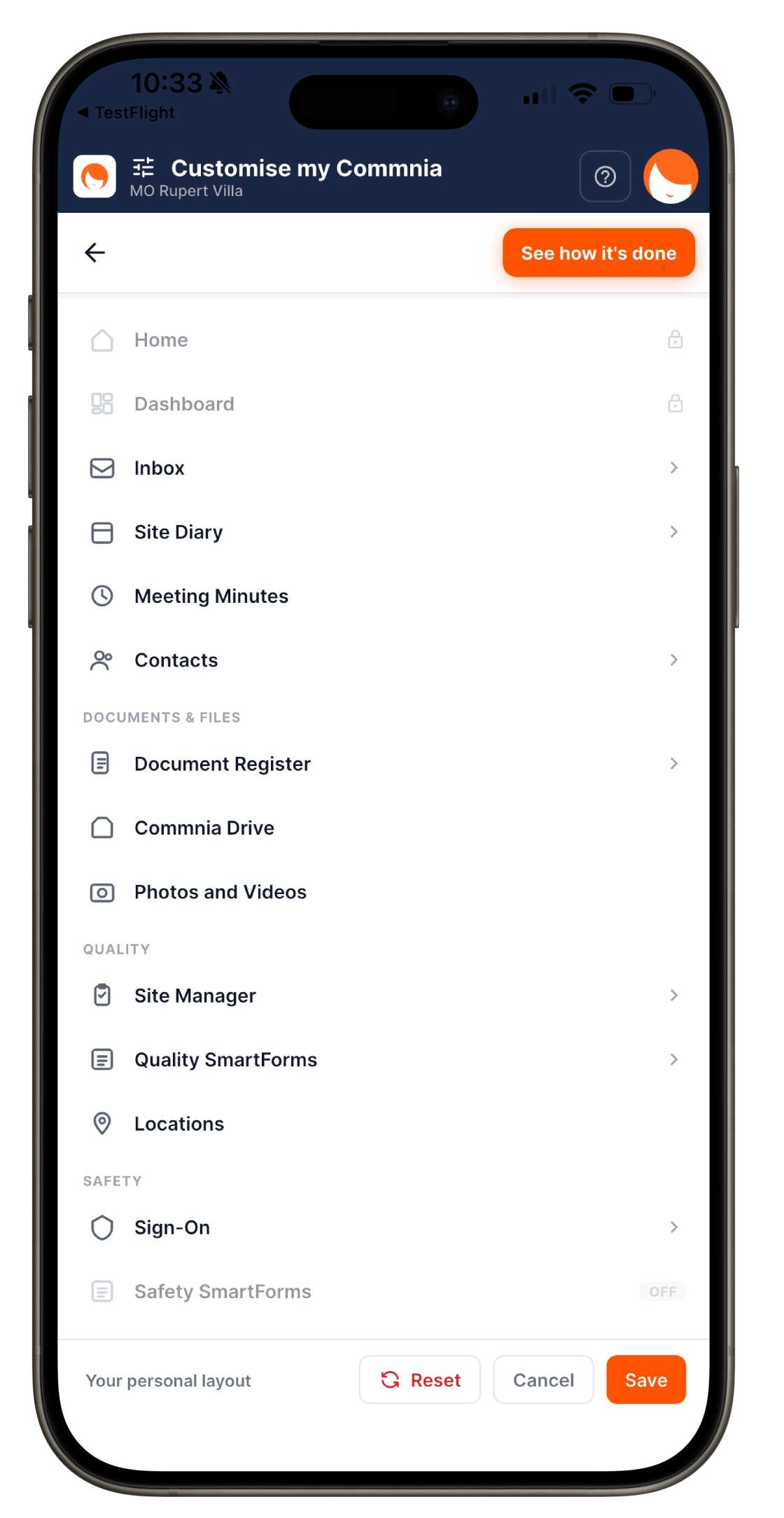
Here we will select Inbox as an example
Here we will select Inbox as an example
1. Toggle "Show in side" menu to show or hide this module
2. Toggling any category under New will create a shortcut to the email composer for that category
3. Toggling any category under Register will create a shortcut directly to that email category in Commnia Inbox.
Make your selections and select Save to Confirm.
Home Tiles
Select Home Tiles
1. Drag and drop the tiles to re-arrange
2. Click on Add or Remove Tiles to customise further
Select and Deselect the modules as you require
Once finalised select Done and then Save
Floating + Button
Select Floating + Button, this button appears throughout the use of the app and gives you access to shortcuts that you set at anytime.
1. Select the Module you wish to customise
2. Search for the inbox category
3. Select the shortcut you wish to make
4. Preview and re-order your selections
Continue customising the floating menu - once finalised click Save
Bottom Navigation
This adds a quick access shortcut to the bottom navigation bar.
Select Bottom Navigation
Scroll up to see more modules and make your selections
The preview will now show what the bottom navigation will look like.
You can re-order and remove your selection using the buttons on the side of each module.
You can re-order and remove your selection using the buttons on the side of each module.
Once finalised click Save and you select Take me to Commnia